
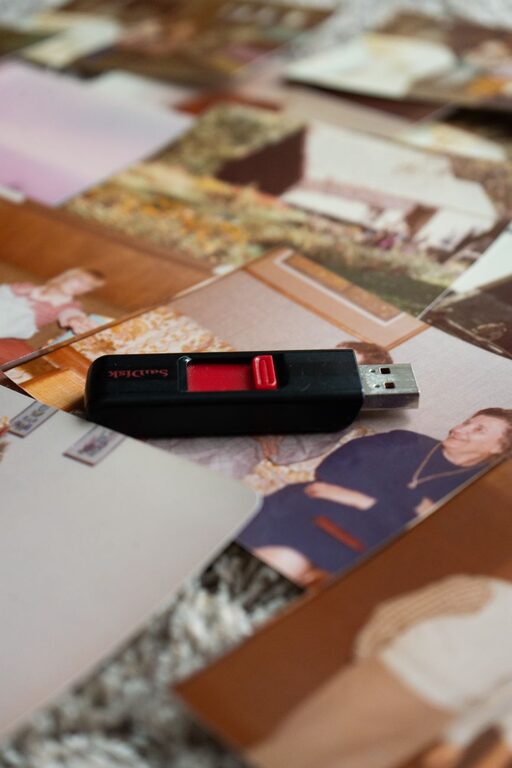
Digital photos make it easy to capture everyday moments, but a growing camera roll can quickly become difficult to manage. Thousands of images may be spread across phones, computers, cloud services, memory cards, and messaging apps. When everything is stored in different places, finding one special photo can take more time than enjoying it.
The good news is that organizing digital photos does not require a complicated system. With a few consistent habits, you can create a photo library that is easier to search, safer to store, and less stressful to maintain.
Start With a Simple Photo Goal
Before moving files or deleting anything, decide what you want your photo library to do. A useful system should help you:
– Find important photos quickly
– Keep favorite memories safe
– Remove duplicate or unusable images
– Make regular backups easier
– Share selected photos with family and friends
– Preserve older pictures for the future
Avoid trying to organize every photo perfectly in one sitting. A practical system that you can maintain is more valuable than a detailed system that becomes too difficult to use.
Gather Photos Into One Main Library
The first step is to identify where your photos currently live. Check your:
– Phone and tablet
– Computer folders
– External hard drives
– Cloud storage accounts
– Camera memory cards
– Messaging apps
– Social media downloads
– Shared family folders
Choose one primary photo library where your main collection will live. This could be a photo management app, a computer folder, or a cloud-based service. The specific tool matters less than having one dependable home for your collection.
Do not delete photos from other locations immediately. First, copy them into your main library and confirm that the transfer was successful. Keeping the original files temporarily gives you a safety net if something goes wrong.
Create a Folder Structure That Makes Sense
A clear folder structure can make browsing easier, especially when you want to access photos without relying on search tools. One of the simplest options is to organize by year and month:
– 2024
– 2024-01 Winter
– 2024-02 Family visit
– 2024-03 Weekend trip
– 2025
– 2025-01 New Year
– 2025-06 Vacation
You can also organize by year and major event. For example, a folder named “2025 Beach Trip” is easier to understand than one named “IMG_4821.”
Use names that are short, consistent, and easy to scan. Adding the year first helps folders appear in chronological order. Avoid creating too many nested folders, since an overly detailed system can make saving new photos confusing.
Keep Original Files Before Editing
When editing photos, preserve the original image whenever possible. Some apps save edits in a way that allows you to undo them, while others permanently change the file.
A simple approach is to keep:
– The original photo
– An edited version
– A final copy prepared for printing or sharing
You do not need multiple versions of every image. For important photos, however, keeping the original gives you more flexibility later. You may want to crop the image differently, adjust the brightness, or create a new version for a photo book.
Sort Photos in Several Passes
Trying to decide the final destination of every photo can make organizing feel overwhelming. Instead, use several quick passes.
Pass One: Remove Obvious Problems
Delete photos that are clearly unusable, such as:
– Accidental pocket photos
– Completely blurry images
– Blank or nearly blank images
– Screenshots you no longer need
– Repeated photos with no meaningful difference
Be careful with similar images. A photo that appears ordinary may become valuable later because it captures a person, place, or moment you had forgotten.
Pass Two: Group Related Photos
Move photos into broad categories such as trips, holidays, birthdays, school events, hobbies, or everyday life. You can use folders, albums, or both.
Folders are useful for the physical location of files. Albums are helpful when one photo belongs to multiple groups. For example, a picture from a family vacation could appear in both a “Family” album and a “2025 Vacation” album without creating another copy.
Pass Three: Mark Favorites
Use a favorite or star feature to highlight your most meaningful images. Favorites might include:
– Important family moments
– Photos of people who matter to you
– Milestones and celebrations
– Beautiful places
– Images you want to print
– Photos that tell an important story
Do not feel pressured to choose only a small number. The goal is to create a useful collection of standout photos, not to judge every memory.
Use Helpful Names and Dates
Most phones and cameras record the date a photo was taken, but the information may not always be accurate. Check the date after importing photos, especially if you used an older camera or moved files between devices.
For important events, add a short description or caption. A note such as “Grandpa’s garden, summer 2018” can be more useful than a generic file name. If your photo app supports searchable tags, add simple terms such as “birthday,” “camping,” “dog,” or “beach.”
Keep tags consistent. If you use “vacation” for one group and “holiday trip” for another, searching may become less reliable. Choose one term and use it regularly.
Build a Backup System
Organizing photos protects your memories only if the files are backed up. A dependable approach is to keep at least two copies in different places. For especially important photos, three copies provide additional protection.
A basic backup plan might include:
- Your main photo library on a computer or phone
- A copy on an external drive
- A copy in a trusted cloud storage service
Check that backups are actually complete. A drive that has not been updated in several years is not a current backup. Set a reminder to back up new photos monthly or use automatic backup features when available.
Store an external drive somewhere separate from your main device. If both are kept in the same location, damage to that location could affect both copies.
Protect Favorite Memories With Printed Copies
Digital storage is convenient, but printed photos can make memories easier to enjoy and share. Choose your favorite images each year and consider creating:
– A small photo book
– Framed prints
– Greeting cards
– A family calendar
– A memory box with selected pictures
Printing does not replace digital backups, but it adds another way to preserve and experience important moments. It can also help family members who do not regularly use photo apps or cloud services.
Make Organization a Small, Regular Habit
Photo organization becomes much easier when it is part of your routine. Set aside a few minutes each week or month to:
– Import new photos
– Delete obvious duplicates
– Add important albums
– Mark favorites
– Check backup status
– Print or share selected images
You can also create a yearly photo review. During this review, remove clutter, update your favorite collection, and make a short album of the year’s best moments.
Keep the System Easy to Maintain
The best photo organization method is one you will continue using. Avoid rules that require too much time or effort. If choosing detailed tags for every image feels tedious, use folders and favorites instead. If folders are difficult to manage, rely on albums and search.
Most importantly, do not delete photos simply to create a cleaner library. When you are uncertain, place an image in a temporary folder or archive. You can review it later when you have more time and a clearer idea of its value.
With a consistent home, simple labels, regular backups, and a thoughtful favorites collection, your digital photos can become easier to enjoy rather than harder to manage. The goal is not a perfect archive. It is a safe, searchable collection that keeps meaningful memories within reach.